FloraPay Settings | MerchantTrack, Terminal & Tips
On the FloraPay Settings you can check your transactions in closer detail with MerchantTrack, view your Merchant ID, manage your terminal Tip and Receipt settings and set your Program Fee settings.
To locate your FloraPay settings page, navigate to Settings > Business Settings > FloraPay Settings.
Table of Contents:
Navigate to the FloraPay MerchantTrack section and follow the View MerchantTrack button to a new tab where you can view your FloraPay MerchantTrack dashboard.
From MerchantTrack, you may register new terminals, view your transactions, batches, processing fee breakdowns, check card declines in better detail and get access to a number of FloraPay specific reports.

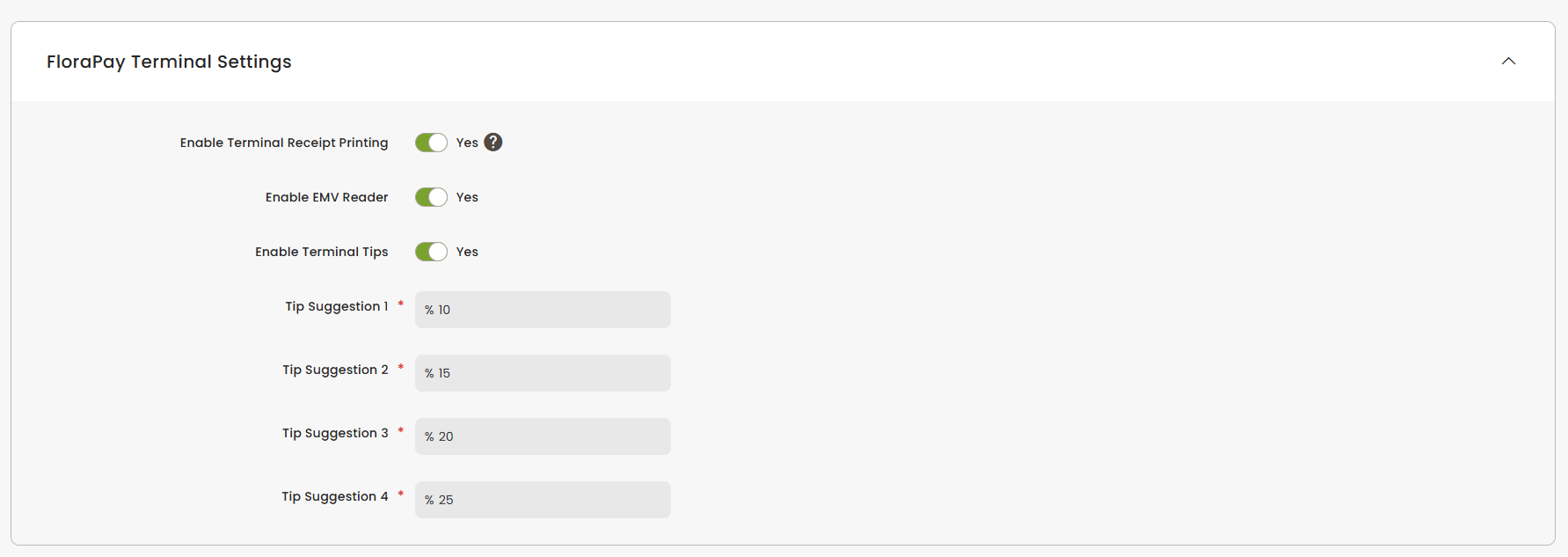
The FloraPAY Terminal Settings section is where you can manage your Terminal's Receipt Printing and Tip settings.
Receipt Printing - What to know:
- When enabled, the terminal will print after completing card present payments, example: Tapped, Inserted, Swiped payments.
- The terminal's receipt print includes a merchant and customer copy.
- The PAX A920 Pro terminal requires 2 1/4" x 55 feet receipt paper.
- The PAX A800's terminal requires 2 1/4" x 50 feet (58mm Width x Diameter 36mm) receipt paper.
- Note: The terminal can only print receipts for terminal payments, the receipt format is distinct from a Floranext dashboard receipt print and cannot be edited.
Tips:
- When enabled, use the settings on this page to manage four tip suggestions. These will appear on your terminal during the checkout process.
- While placing a payment with the terminal, there will also be options for Custom Tip or to leave No Tip.
- If you set the Tip from the Take Order Page before starting the transaction, the Tip suggestions will not appear on the terminal but the the Tip will show as Tip both in Floranext and your FloraPay MerchantTrack dashboard.
- Note: This feature is only available on packages with Advanced POS access. Tips are not currently available for House Account terminal payments.
Terminal FAQ:
- Q: How can I order a Terminal?
- A: Please contact Floranext Support for the Terminal Order form and next steps.
- Q: How do I activate my Terminal?
- A: Please contact Floranext Support for instructions and assistance.
- Q: What are my options for a Terminal?
- A: The PAX A920 Pro is available in the United States. The PAX A800 is available in Canada.
- Q: Does the PAX A800 support Interac payments and refunds?
- A: Yes, the customer's card will be required to complete refunds for payments that have already been batched.
- Q: Where can I purchase Terminal receipt paper?
- A: You may purchase Terminal receipt paper from any common office supply store.
- Q: How do Terminal processing rates compare to eCommerce or Keyed-In transactions?
- A: Terminal rates are generally better as they are considered a more secure and fraud avoidant form of payment, but please confirm with your FloraPay agent for specific information on rates.