

FloraPay | Setting Up PAX Terminals
Accept card present payments and tips all from your PAX terminal powered by FloraPay. Floranext supports the PAX A920 Pro for the United States, and the A800 for Canadian merchants. To start processing, read the instructions below on how to setup your own terminal.
Table of Contents:
How to Connect Your PAX Reader to The Internet
The first step to getting your Pax reader setup is to connect it to the internet.
In order to connect your reader to the internet you will to perform the following steps:
-
Turn on the device by holding down the power button on the right side of the device
-
Click the Back/Cancel Button twice when presented with a Setup screen
-
Please wait until you see the Welcome screen
-
Swipe up at the bottom of the screen for a black footer with a triangle
-
Double-click the triangle
-
Enter the PAX password pax9876@@
-
You will be taken to the Android home screen
-
Click the Settings (gear) icon
-
Enter your PAX password pax9876@@
-
Select Network & Internet
-
Select Wi-Fi
-
Select your Wi-Fi from the list
-
Enter your Wi-Fi password - You can select the checkbox next to Show password to see what you are typing
-
Click Connect
-
Once you enter the correct password for your selected Wi-Fi, you will see your Wi-Fi name displayed with Connected underneath. You can click on the Wi-Fi name to gather more data like the Signal strength connection to the device
-
Click the small circle at the bottom of the device to return to the Home screen
Note: Both the A920Pro and A800 are Wi-Fi only.
Connect Your PAX Reader to Your FloraPay MerchantTrack Account
Once you PAX Reader has been connected to the internet you can begin connecting it to your FloraPay account.
To connect the reader to your account you will want to perform the following steps:
Note: Only Store Owners have access to the Terminals page in their MerchantTrack.
To connect the reader to your account you will want to perform the following steps:
-
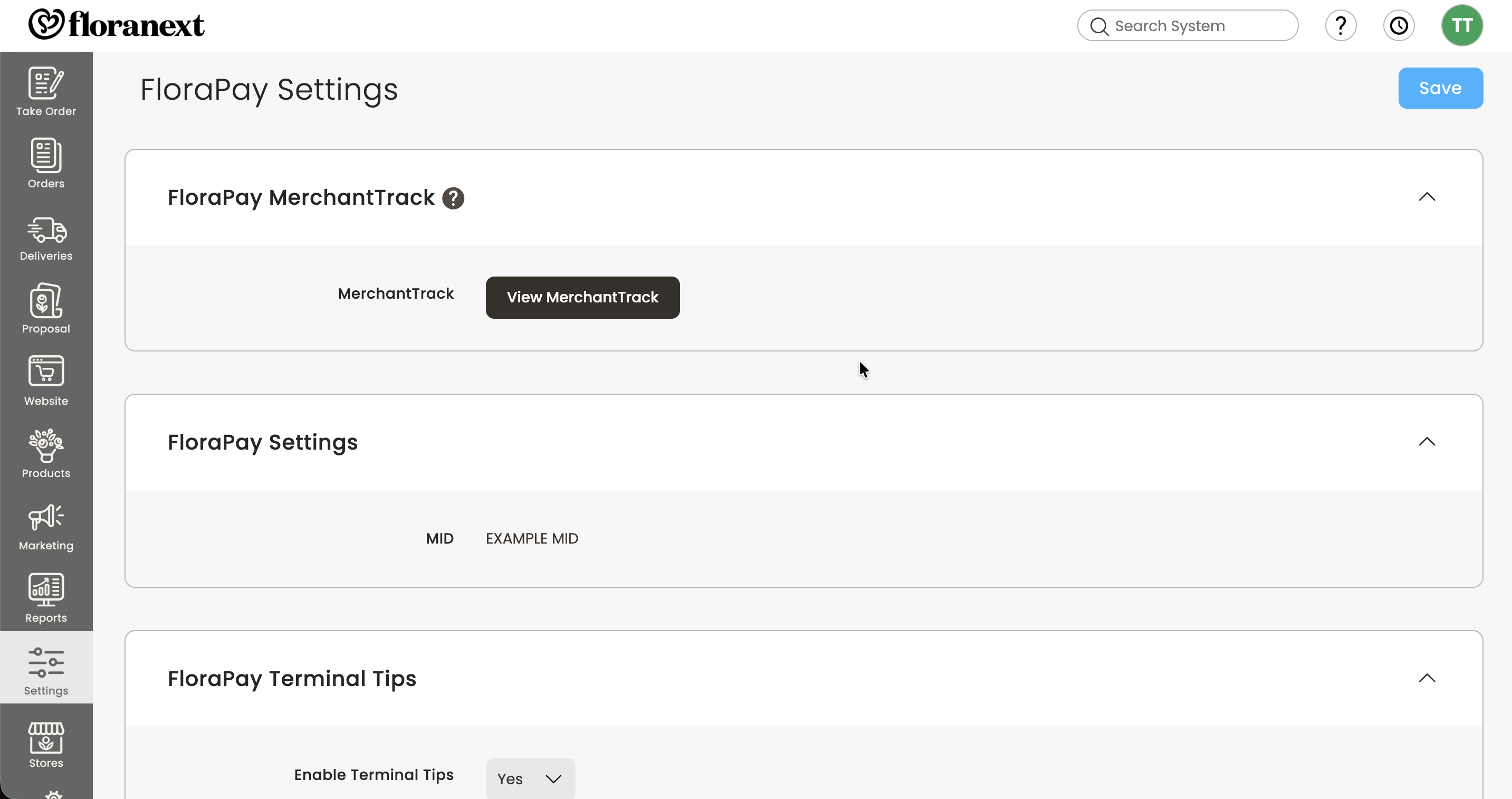
Open MerchantTrack by going to Settings > FloraPay Settings and selecting MerchantTrack > View MerchantTrack
-
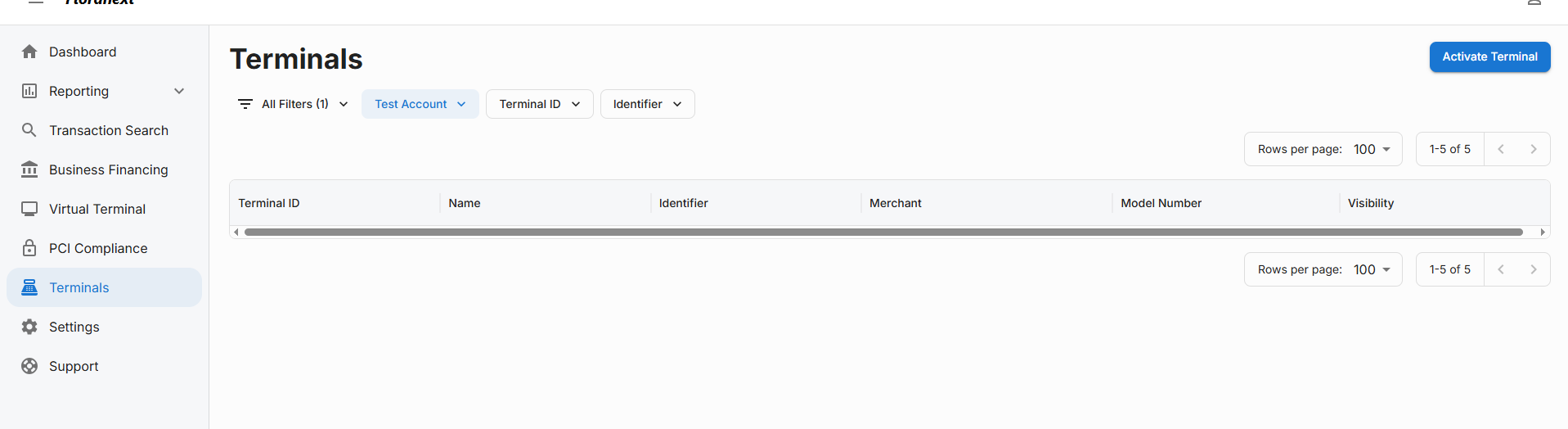
Select Terminals > Activate Terminal
-
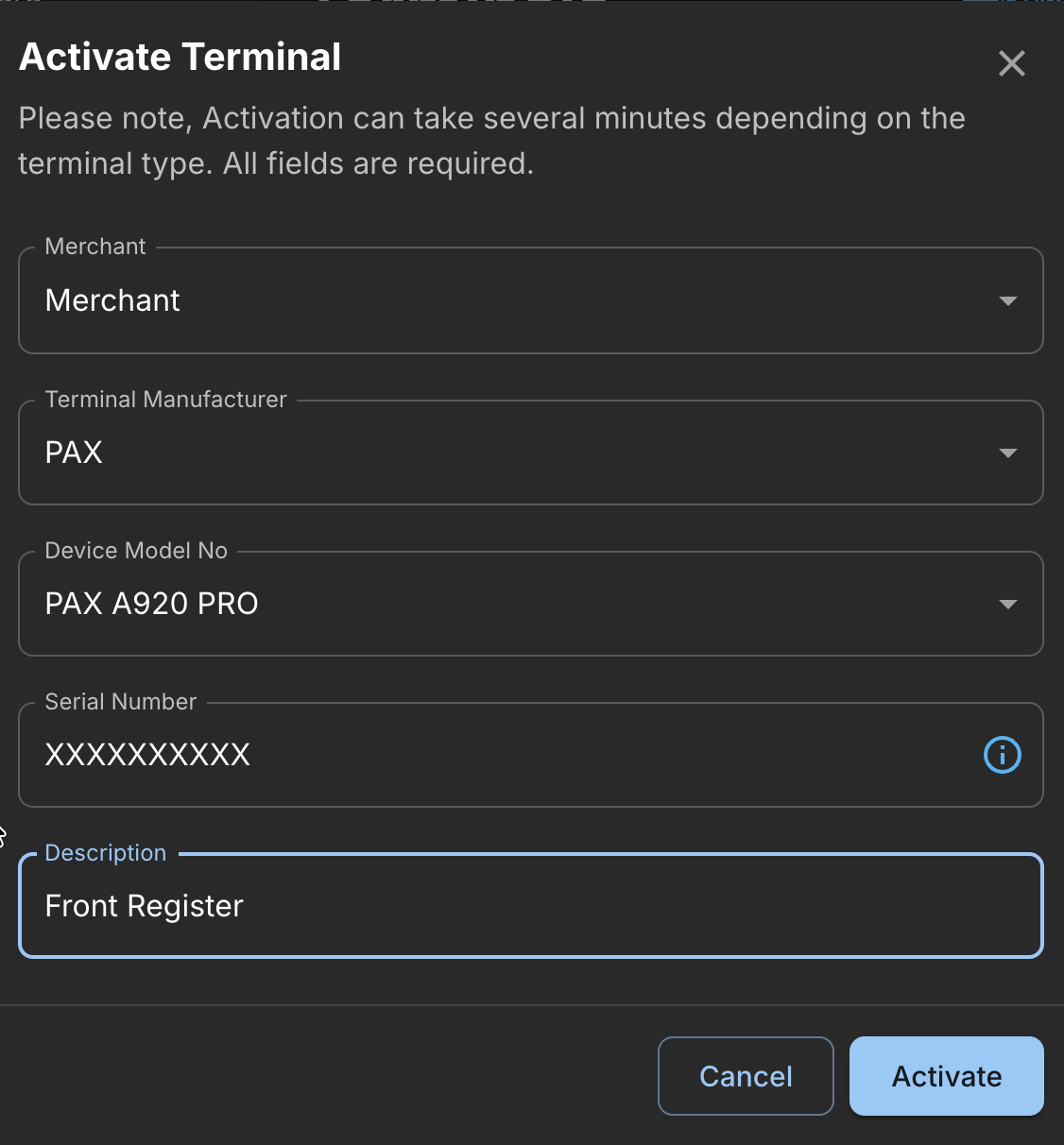
Your Merchant Name will be listed
-
Select PAX as the Terminal Manufacturer
-
Select your correct Device Model No (A920Pro or A800)
-
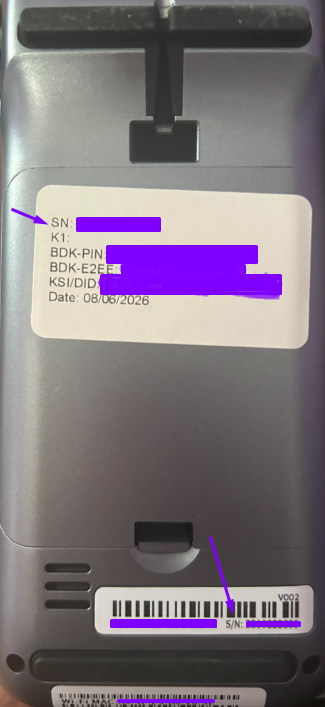
Enter the Serial Number. You will locate this on the back of the device starting with S/N: 0000000000. Please see the red arrow on the first image below for where to find the S/N on the A920Pro. See the purple arrows on the second image below for where to find the S/N on the A800.
-
Enter the Description for your device. This will be a unique name for this terminal in your shop
-
Click the Activate button. Please note that activation can take several minutes depending on the terminal type
-
Terminal may enter some other screens will activating and booting up. Please allow the device to fully activate and boot up. Will be ready when you see the Welcome screen
Now that your reader has been properly setup you can begin taking credit card transactions from your Floranext Admin Dashboard.
FAQ
Q: Where can I get receipt paper for my terminals?
A: You can get your PAX terminal receipt paper from any of the common office supply stores you purchase from regularly.
Q: What are the dimensions for the terminal receipt paper for the PAX A920 Pro?
A: The PAX A920 Pro paper is 2 1/4" x 55 feet, the Pax A800 uses paper that is 2 1/4" x 50 feet (58mm Width x Diameter 36mm)
Q: What are the dimensions for the terminal receipt paper for the PAX A800?
A: The PAX A800's paper is 2 1/4" x 50 feet (58mm Width x Diameter 36mm)

