Table of Contents:
Two-Factor Authentication (2FA) adds an extra layer of protection to your Floranext account. In addition to your username and password, you will enter a temporary 6-digit verification code generated by the Google Authenticator app on your smartphone or via email.
(2FA) is required to protect your Floranext system from unauthorized access. With 2FA enabled, anyone attempting to log in will need both your password and a verification code from your email or authenticator app.
Floranext uses industry-standard time-based one-time passcodes (TOTP). The verification codes automatically refresh every 30 seconds and can only be used once.
We recommend enabling 2FA for:
-
Shop owners and administrators
-
Users with access to financial reports or payment settings
-
Any staff member with full system permissions
Google Authenticator is available for both iPhone and Android devices.
Enabling 2FA in Floranext
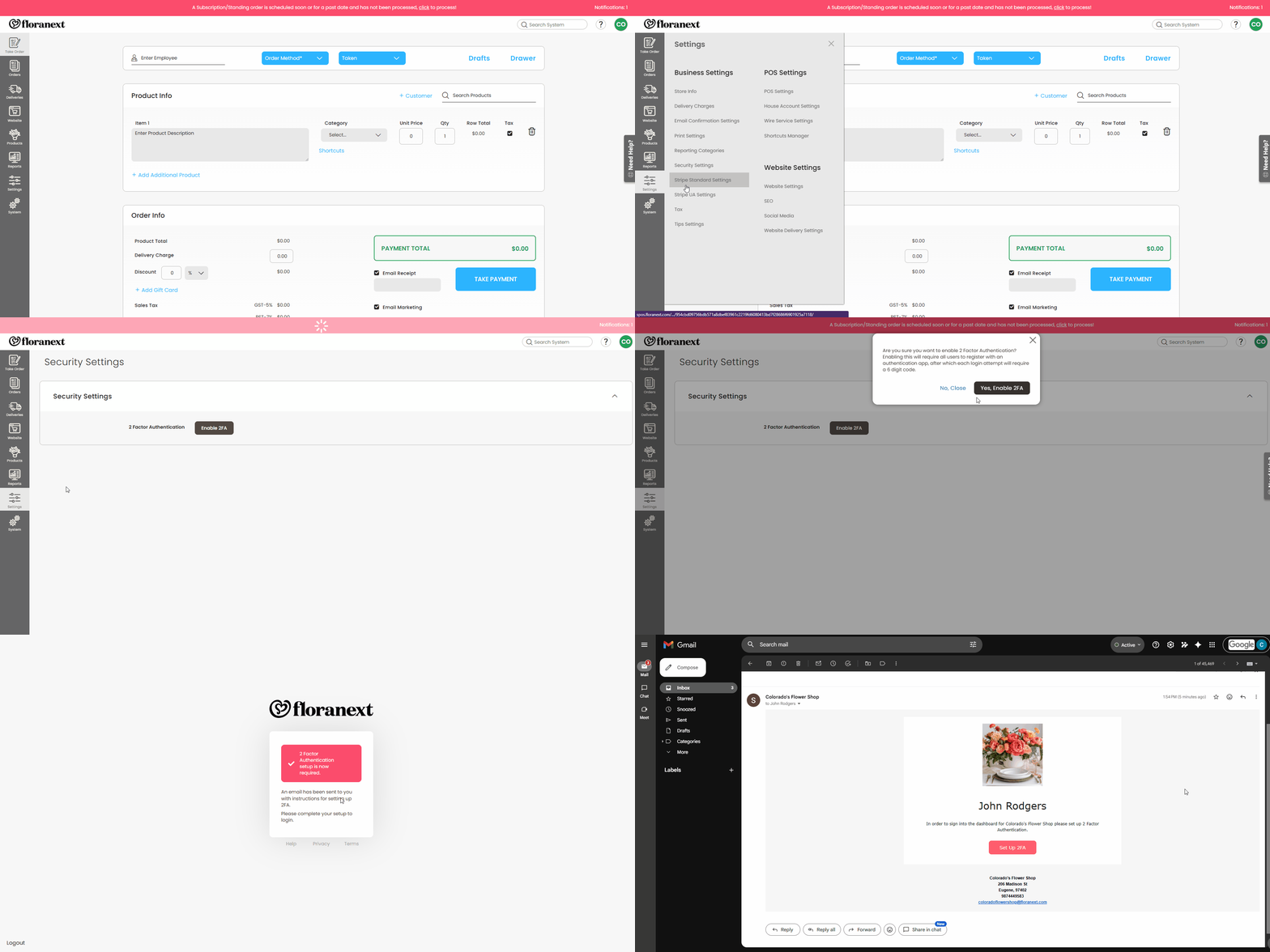
In order to setup up 2FA for your Floranext admin you will need to complete the following steps:
Step 1: Log In
Sign in to your Floranext dashboard using your username and password.
Step 2: Open Security Settings
Navigate to:
Settings → Business Settings → Security Settings
Step 3: Select Your 2FA Method
You may select between two 2FA Methods:
- Email (Default) - when logging in your login email will be sent your verification code.
- Google Authenticator - when logging in you will enter a code generated by a registered Google Authenticator app on your phone.
Step 4: Enable Two-Factor Authentication (Email Authentication)
Click Enable 2FA.
IMPORTANT: Enabling 2FA will require that ALL users set up 2FA to log into your dashboard.
If you selected Email as you 2FA Method you will be asked for a 6 digit code sent to your account's email.
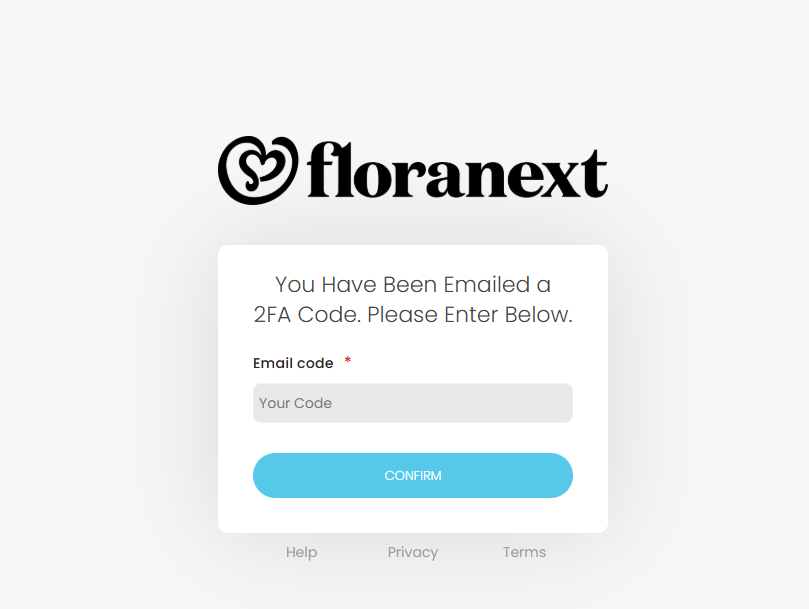

Once you reach this screen you will automatically be sent an email containing the code required to complete your sign in process.
Note: The following steps cover the process required for completing your 2FA setup if you select Google Authenticator as your 2FA Method.
Step 5: Enable Two-Factor Authentication (Google Authenticator)
If you have selected Google Authenticator as your 2FA Method and then hit the Enable 2FA button, you will be emailed a link to register your Floranext login to your Google Authenticator.
Once you have the email pulled up, click the link to navigate to the setup page. You will be directed to a page with a QR Code and a text field for your first verification code.
Step 6: Register Google Authenticator
-
Open the Google Authenticator app on your smartphone.
-
Tap the + icon.
-
Select Scan a QR Code.
-
Scan the QR code displayed in Floranext.
A new Floranext account entry will appear in the app with a 6-digit verification code.
IMPORTANT: A user login can only be registered to one authenticator app at a time.
Step 7: Verify and Complete Setup
Enter the current 6-digit code from Google Authenticator into Floranext.
Click Confirm to complete setup.
Once confirmed, 2FA will be active on your account and required each time you log in.
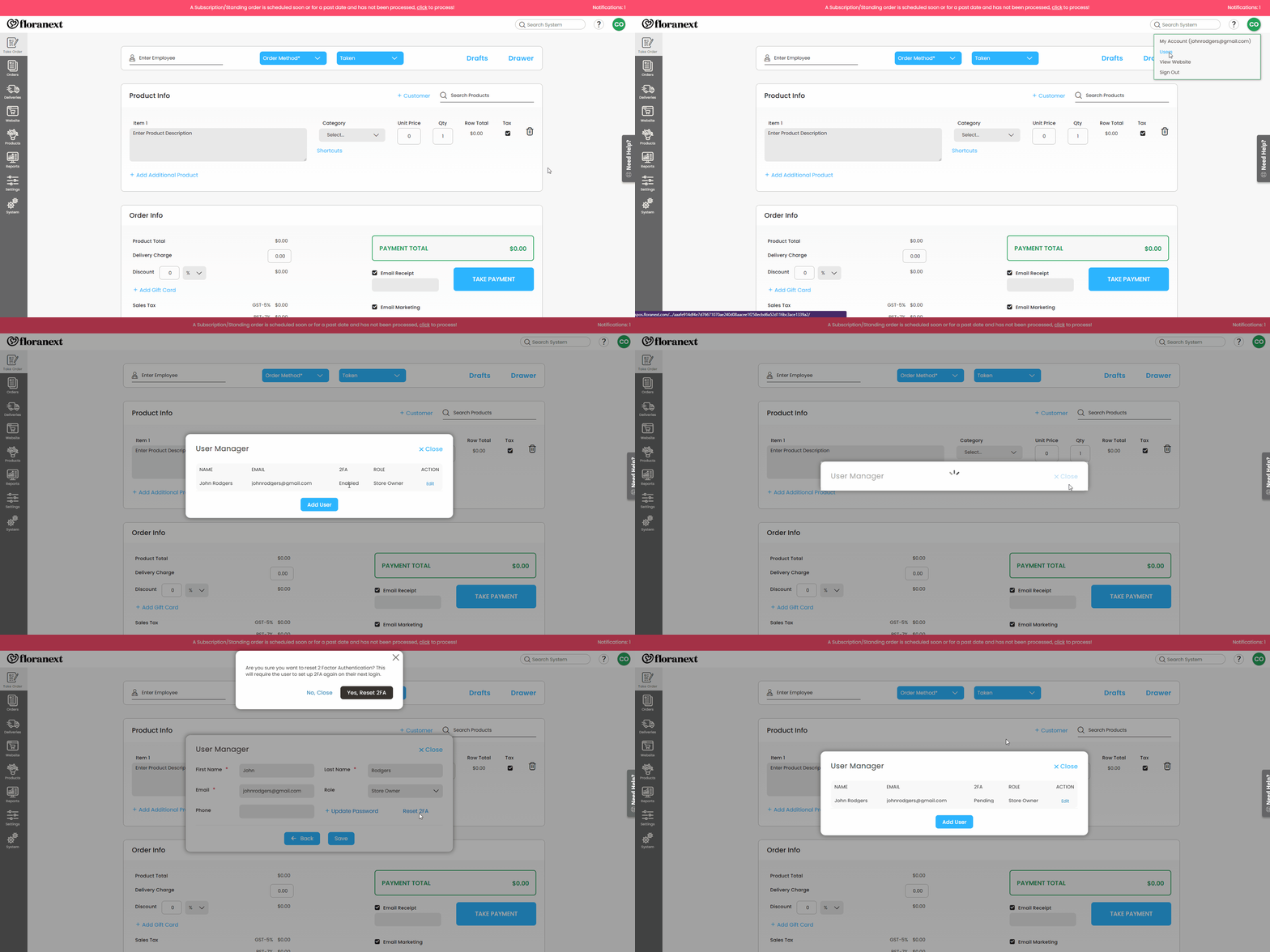
It is possible to reset the 2FA status of an individual user from your users popup. To reset the 2FA status for a user you will need to perform the following steps:
- Click on your account icon in the top right corner
- Click Edit for the user you would like to reset
- Click the Reset 2FA button
- Click Yes, Reset 2FA
Note: You will only be able to reset users whose 2FA status is listed as Enabled.
Once you have reset the user's 2FA they will be prompted to setup 2FA again upon their next login attempt.