


This article explains how to access and set up electronic delivery of your Stripe 1099-K tax form.
Note: If your shop doesn’t use Stripe or if your Stripe payments were below thresholds, you will not receive a 1099.
If your Stripe credit card processing meets the threshold requirements for a given year (Stripe details on threshold here), you will be issued a 1099K form.
In order to facilitate quick access, please follow the steps below to enable e-delivery of 1099K forms. If you do not set up e-delivery for 1099s you will receive a copy by mail at the address on file in your Stripe account.
Note: The name of the company that will be attached to your 1099 form will be Terranex (dba Floranext Payments).
How to Access your 1099K in Stripe Dashboard
If you already have e-delivery set up in your Settings follow these steps. If not, see the section below to set up e-delivery.
-
Log in to your Stripe Dashboard.
-
Click the gear icon (top right).
-
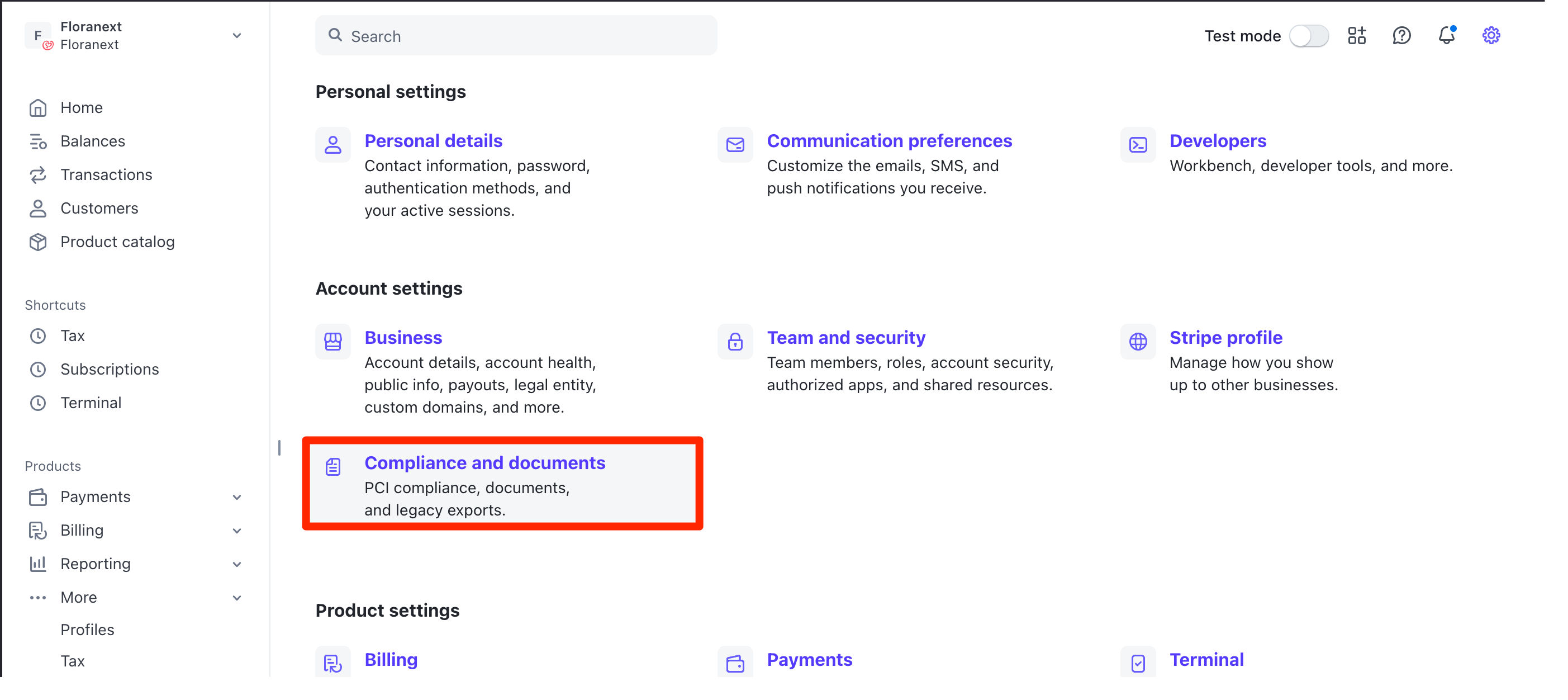
Choose Settings > Compliance and Documents.
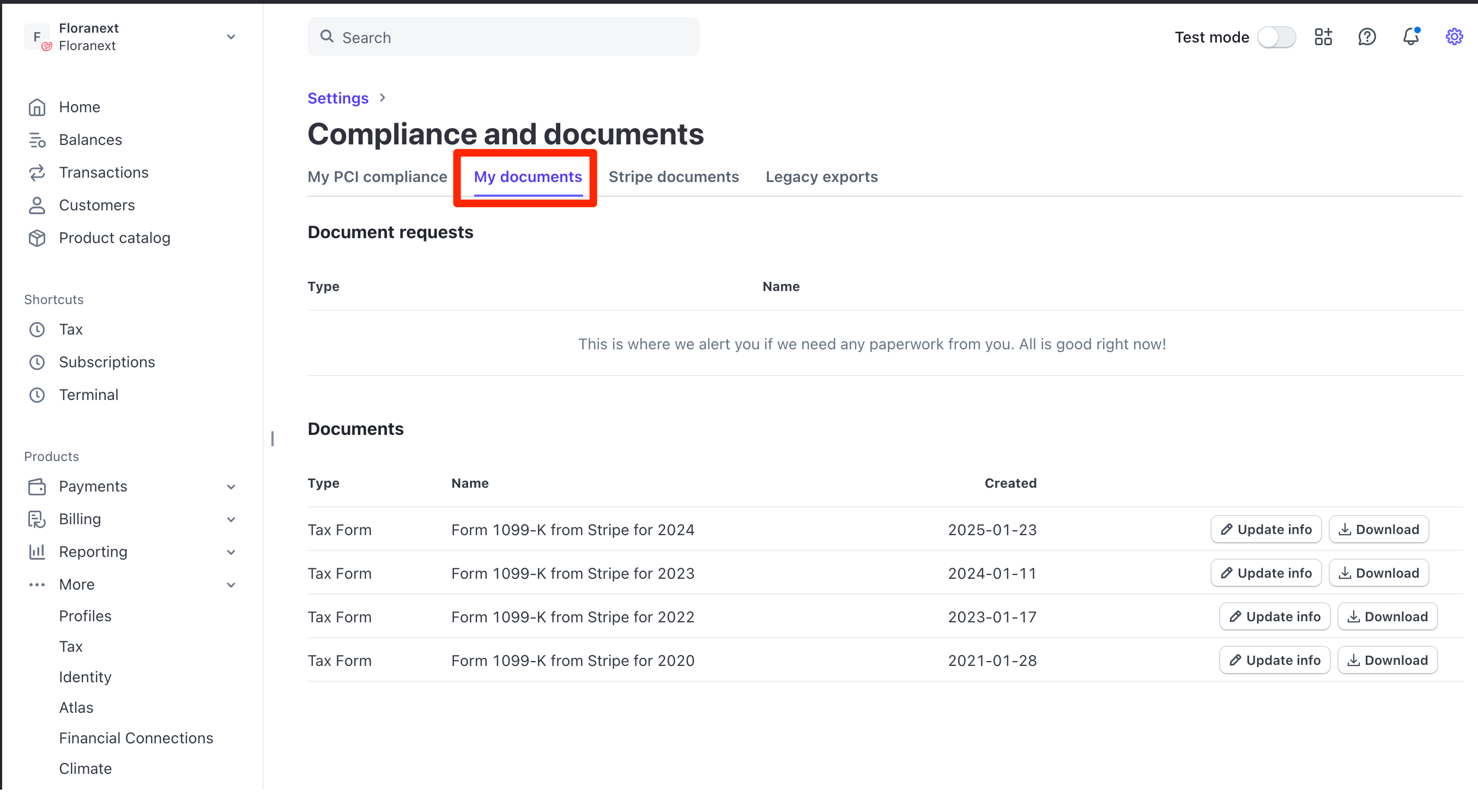
4. Select My Documents and download your 1099-K.
How to Set up 1099K E-Delivery
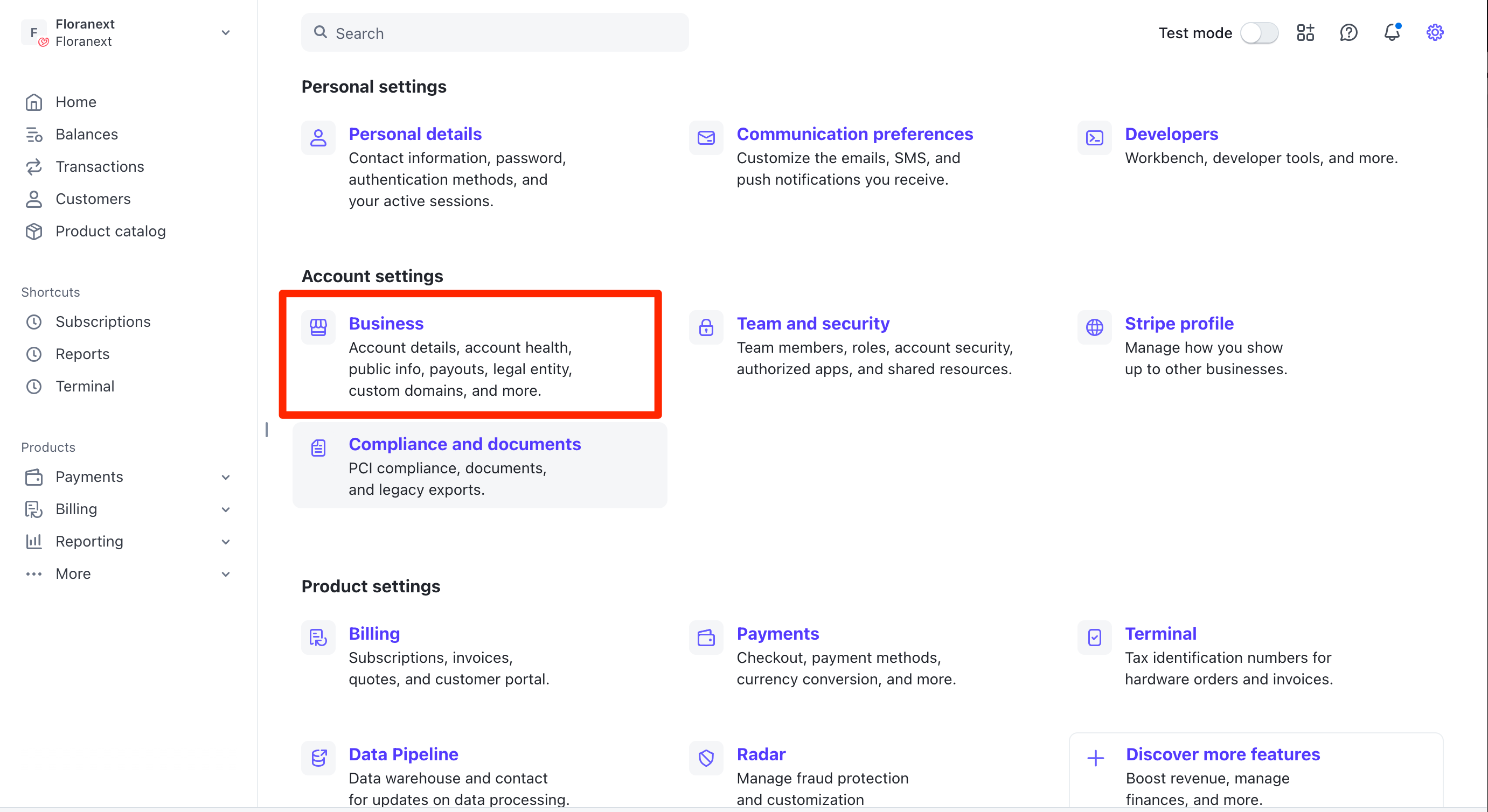
1. In your Stripe admin navigate to Settings (gear icon, top right) > Business > Business Details.
2. Enable "Floranext tax form delivery method"
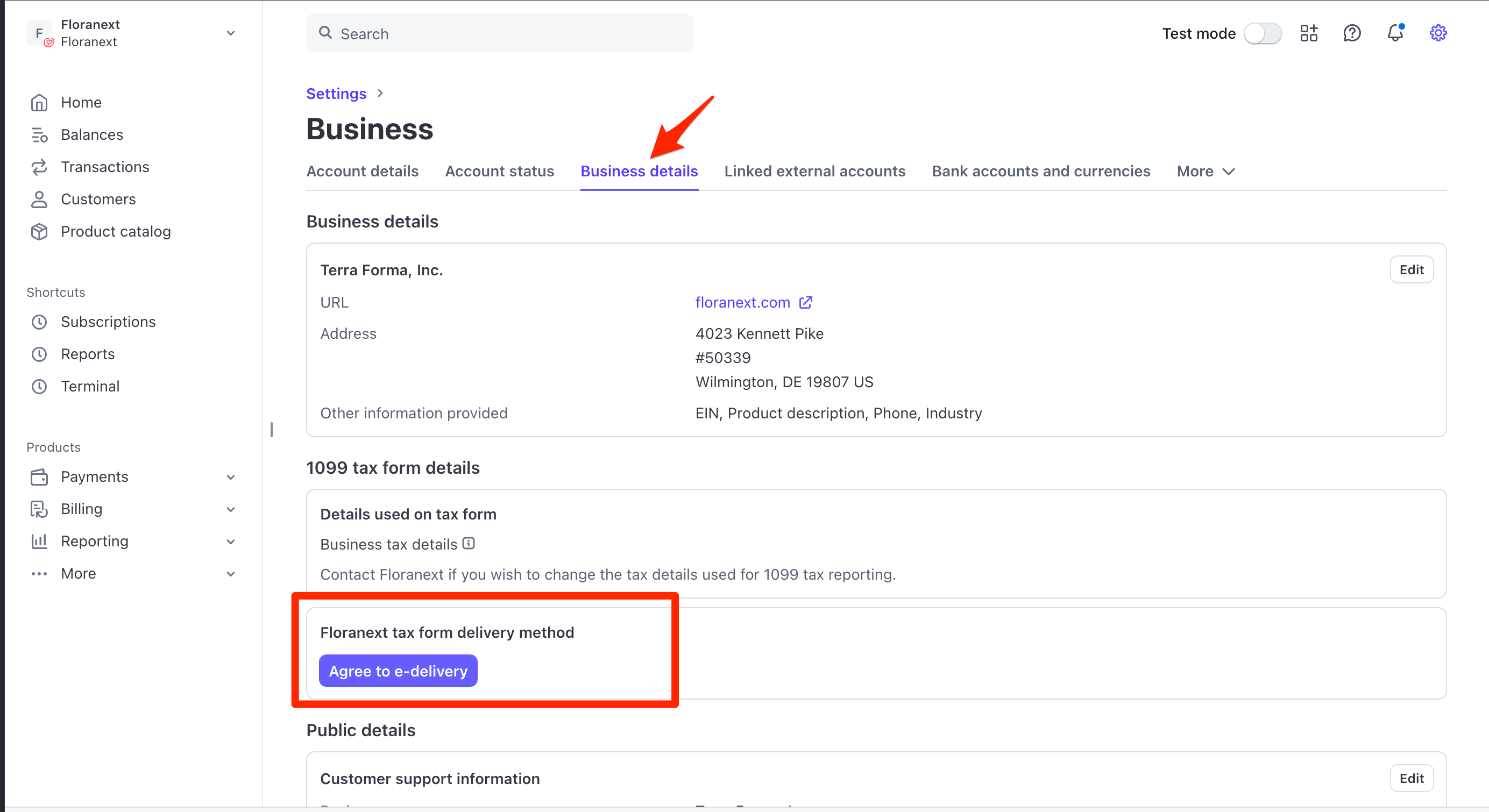
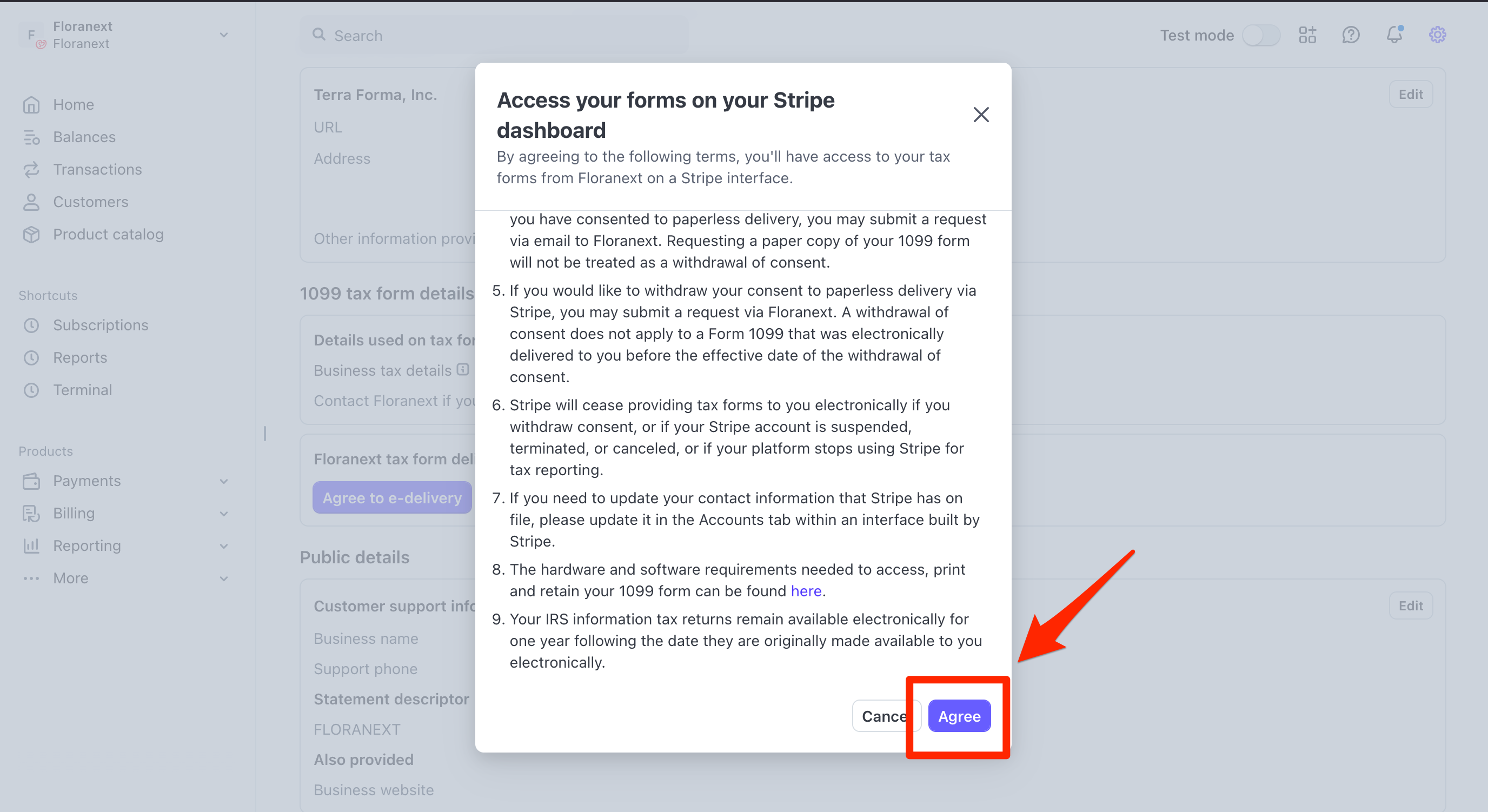
3. Final step - Agree to receive e-delivery of tax documents
Troubleshooting
Why don’t I see my 1099-K yet?
– The forms may not be available before late January.
– You may not meet IRS thresholds.

