FAQ Page Manager

Mar 20, 2026
Floranext's new FAQ Page Manager page will allow you to easily setup and manage an SEO-optimized FAQ page on your website with a great and user friendly design. In this article we will go over the different details of this feature.
Where can I manage my FAQ Page settings?
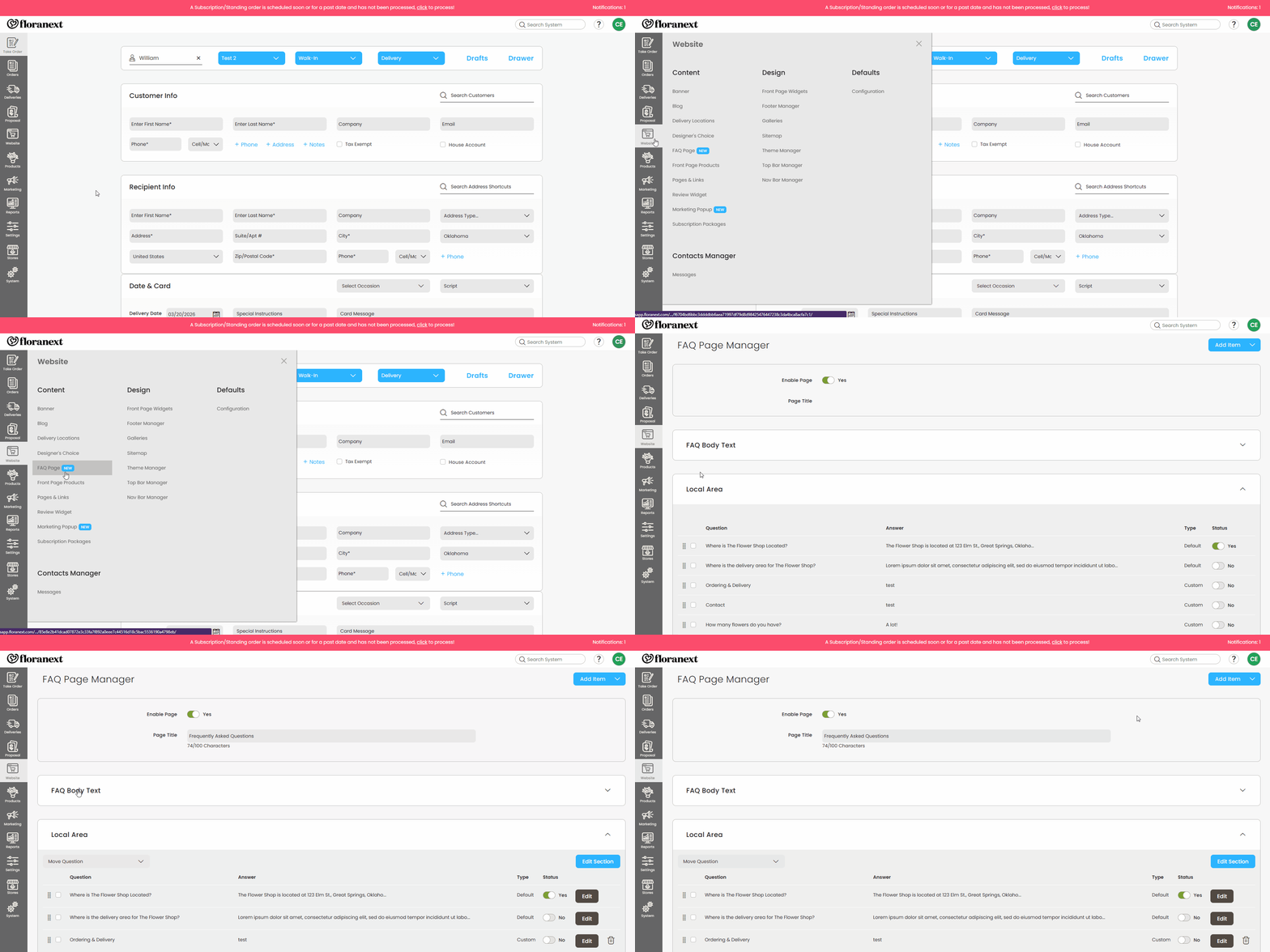
- To access the FAQ Page Manager you will need to go to Website > Content > FAQ Page on your Floranext dashboard.
What does the FAQ Page Manager offer?
- Questions/Answer - You can add your own questions and manage the answers with a WYSIWYG Editor for embedding links and better formatting control.
- Sections - Organize your questions into sections. These will also automatically show in the frontend page's Table of Content for easy navigation.
- FAQ Body Text - Optionally, you may set introductory text with the FAQ Body WYSIWYG Editor at the section at the top of the page.
What does "Default" and "Custom" mean in the Types column?
- Default - these are questions that use system settings to generate an answer. For example, the question "Where is YOUR FLOWER SHOP Located?" pulls your store's Name and Address information from the Store Info settings page automatically so you do not need to enter it multiple times.
- Custom - these are questions that you may directly edit using a WYSIWYG Editor or even delete if you choose to.
Why are there already Custom Questions and Sections on my FAQ Manager?
- Floranext has provided several custom questions and answers for your shop's FAQ manager that are very common to save you time and energy.
- You may remove or edit any of the Floranext Provided questions to better suit your shop's needs.
- By default, we have set these questions/answers to be disabled in case you need to make any changes yourself.
- Note: a few of the questions may ask that you enter your own answer so please review before enabling.
How can I re-order my FAQ Page?
- Drag and Drop - You can change the positioning of a section's questions by dragging them into the order you like. The order of the questions on your FAQ Page Manager will reflect the order of the questions on your website
- The Move Question Dropdown - You can move a question between two sections by selecting the checkbox next to the question then selecting the section you would like to move the question to from the Move Question dropdown
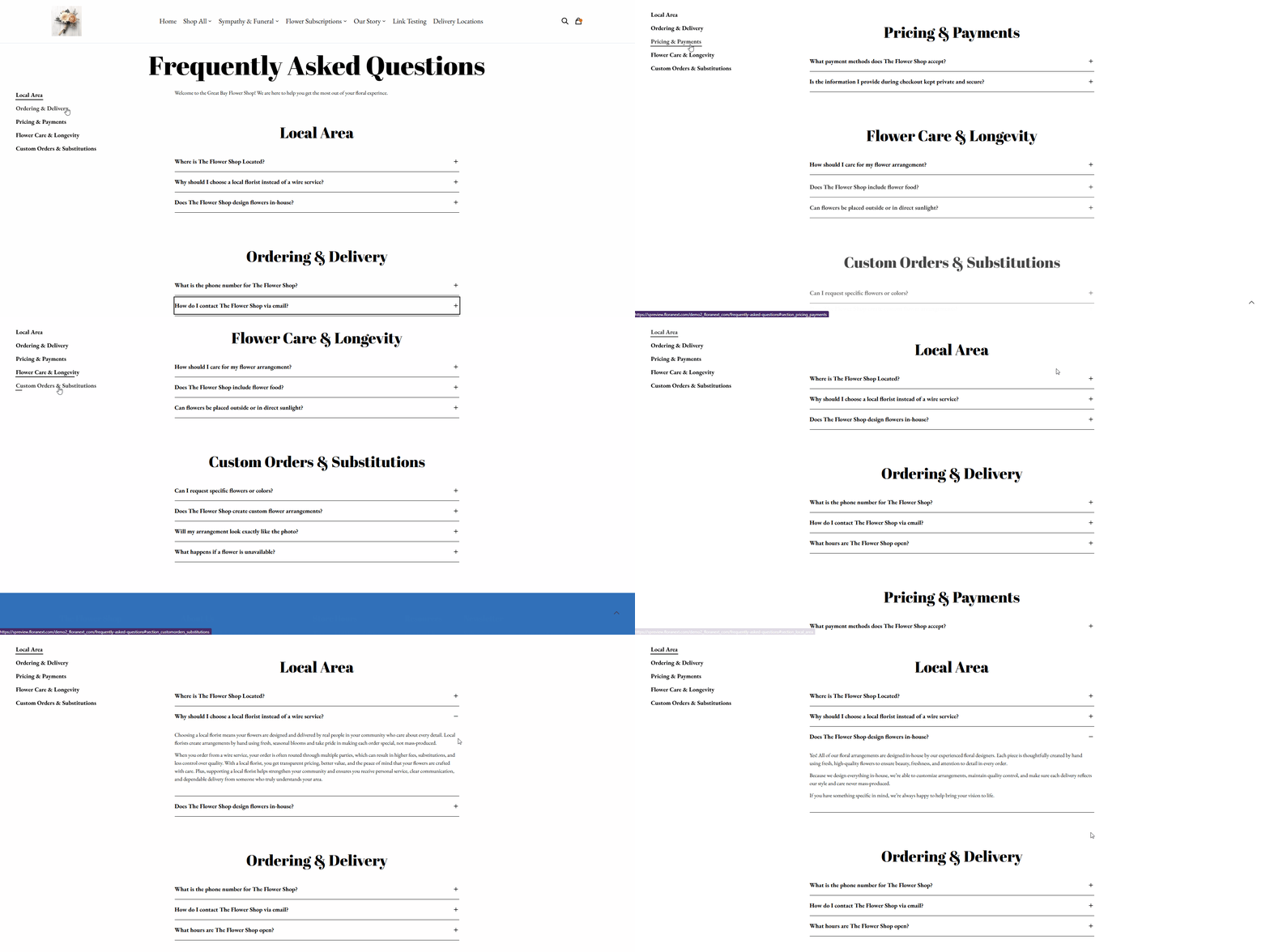
When viewing the FAQ Page on your website it will display a table of sections on the left hand side of the page for easy navigation.
Your customers will be able to view the answer to a question by expanding the text of any question they select.