


Floranext's Mileage Report allows you to easily see how many miles your drivers have driven over a set period of time. In this article, we will go over some of the details of the Mileage Report.
Table of Contents:
You can access the Mileage Report by navigating to Reports > Management > Mileage Report.
Once you are on the Mileage Report, you will have a few items you can view:
- Summary - The Summary will show you the total route, total stops, and total mileage
- Driver Summary - The Drivers section will include each driver and a summary of their total milage for the date range
- Driver & Route Details - The tables below the summary offer a more detailed view of how many routes and stops each driver has had and the mileage of each of these routes as well.
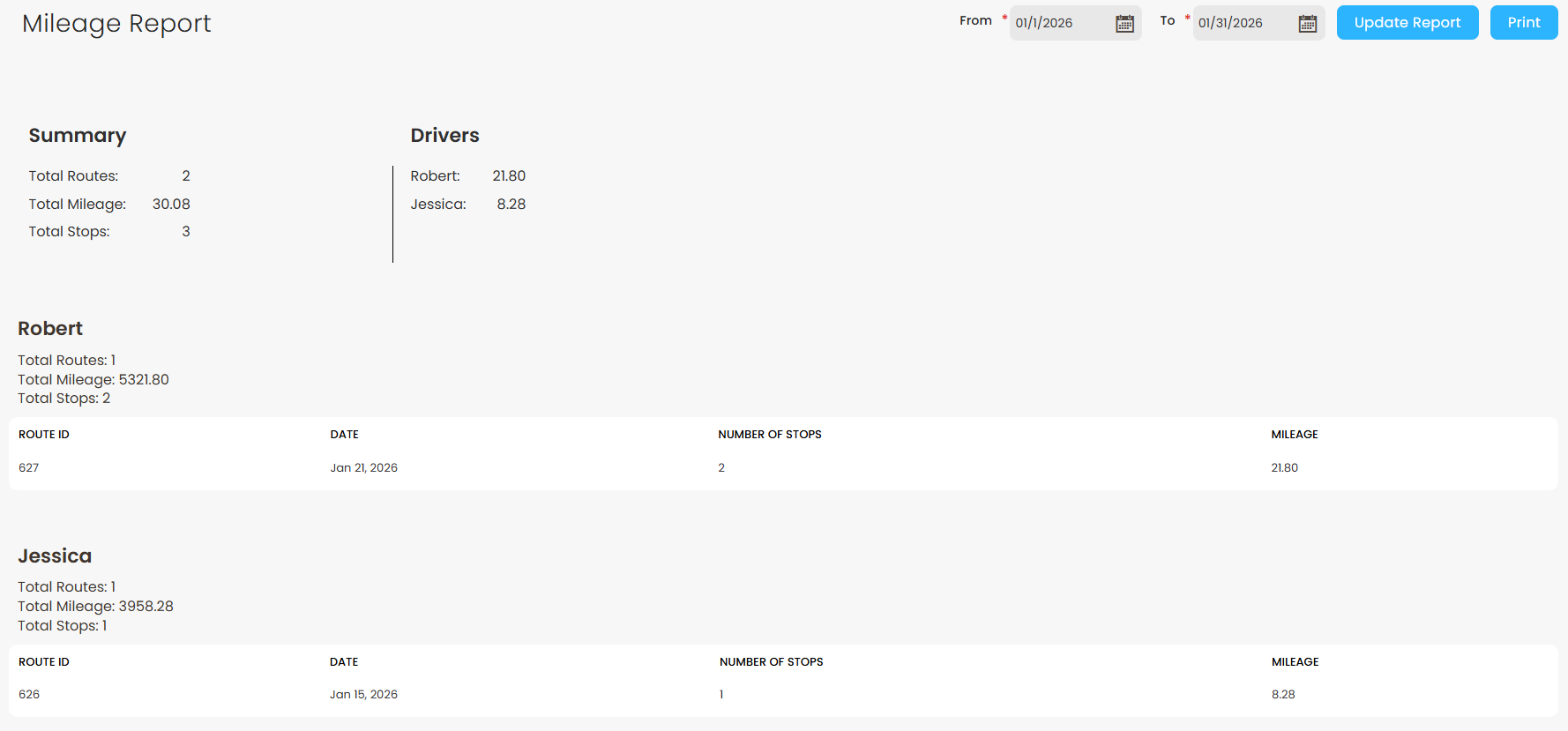
When viewing tables for each driver, you will be shown the route IDs for each route that was assigned to them in addition to the date it was assigned, the number of stops, and the total mileage of the route. Each driver will have their own table.
When is mileage calculated?
Mileage for the report is calculated based on the mileage reported when the route was created.
How do edits to the route affect the mileage report?
The mileage may be updated if new orders are added to the route, the route is reoptimized, or an order is removed from the route to be sent back to the To Deliver section.
Note: Changing an order to Taken/Delivered will not update the mileage reported for the route on the report.
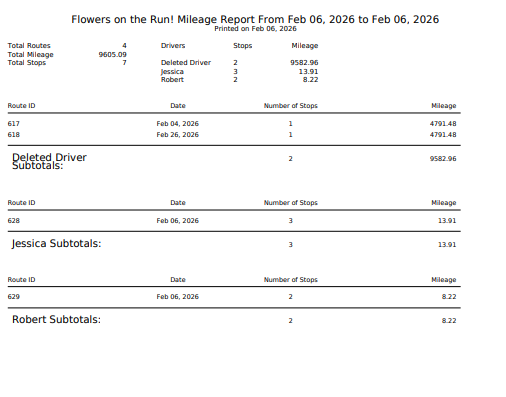
You are able to print out your Mileage Report by clicking the Print button located in the top right of the report next to the date filters. When you print out the report, it will provide all of the same information as the admin dashboard view of the report. The only difference will be that the driver tables will not display the number of routes assigned to each driver in the subtotals section.
Note: Routes are available for POS Adv and Routing Add-On and use Google Maps to optimize the position of orders in the route. If you don't have access to either of these, you may only Group orders from the Deliveries page. Groups are ordered by ID, do not use Google Maps for optimization, and do not appear on the Mileage Report.
Note: The Mileage Report is only available for Advanced POS Packages or the Delivery Routing Add-On product.

