


Floranext's new Advanced Routing feature will allow you to better control how your delivery routes are formatted. In this article we will be covering the different functions this new feature will allow.
Table of Contents:
- Advanced Routing Features
- Editing Routes
- Optimized vs Unoptimized Routes
- Assigning Orders to Existing Routes
- Priority Routing
The new Advanced Routing feature includes a number of new functions to improving the order routing process, some of these features include:
- Route Editing - Use Drag & Drop to make quick updates to your route.
- Optimized vs Unoptimized Routing - Create Optimized routes with Google maps, or build Unoptimized routes manually yourself with the Drag & Drop feature.
- Priority Routing - Assign priority ratings to your important orders before you route them to automatically set them at the start of your route.
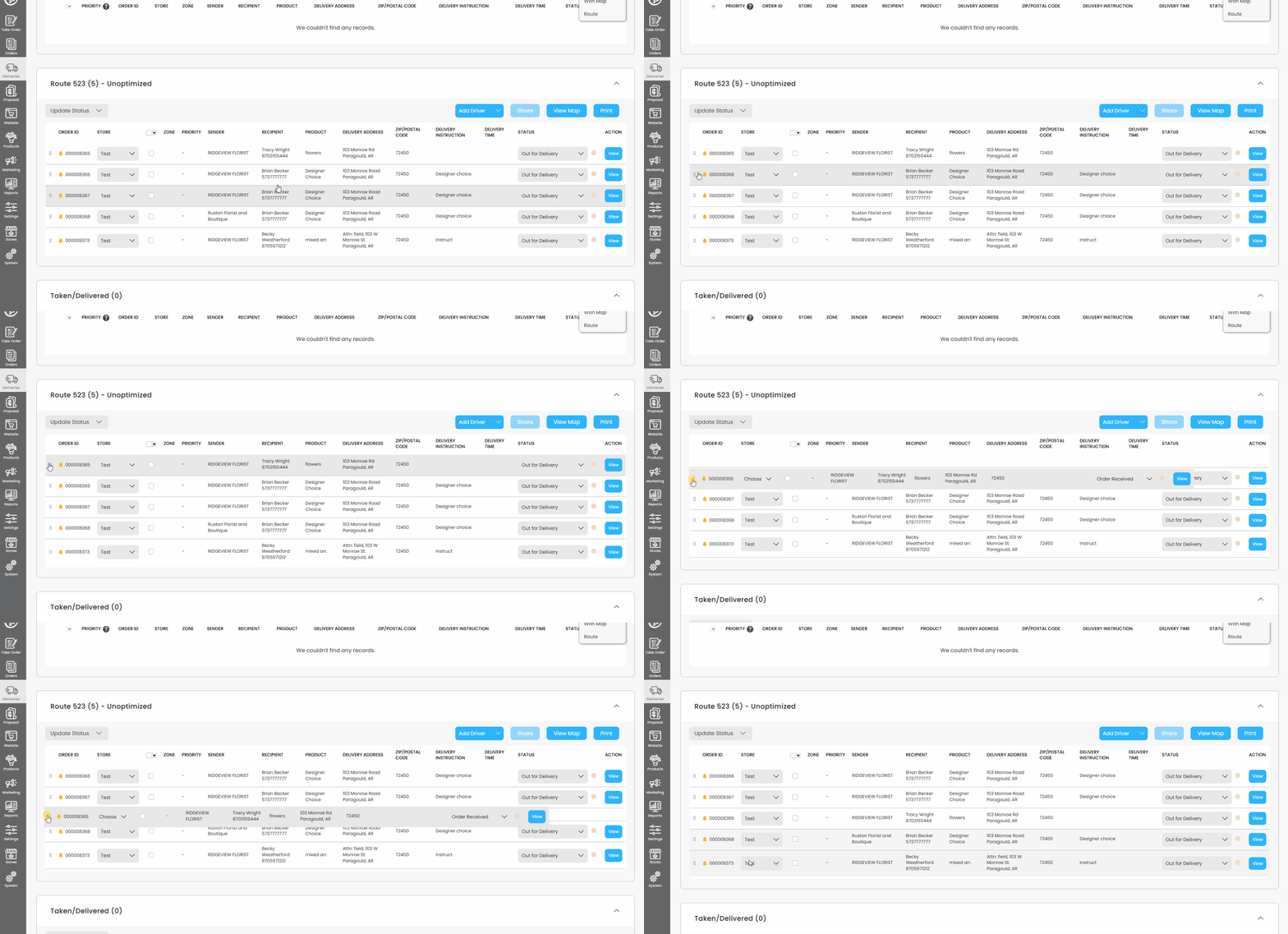
Once you have created a route, you can quickly and easily edit the order of the route with Drag & Drop functionality. Edits save automatically!
Note: Optimized routes will show read as "Edited" if an order is relocated via Drag & Drop.
Optimized vs Unoptimized Routes
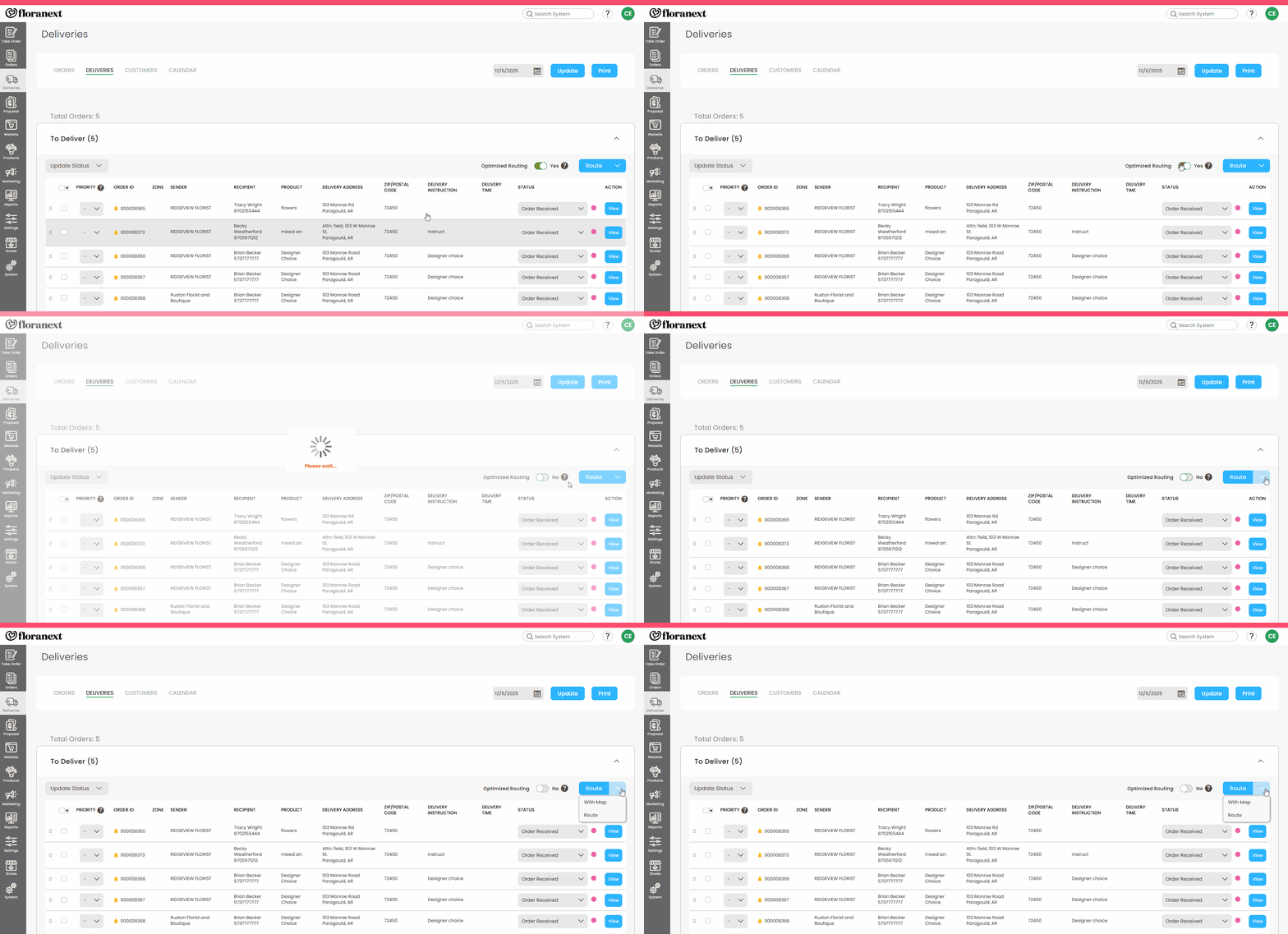
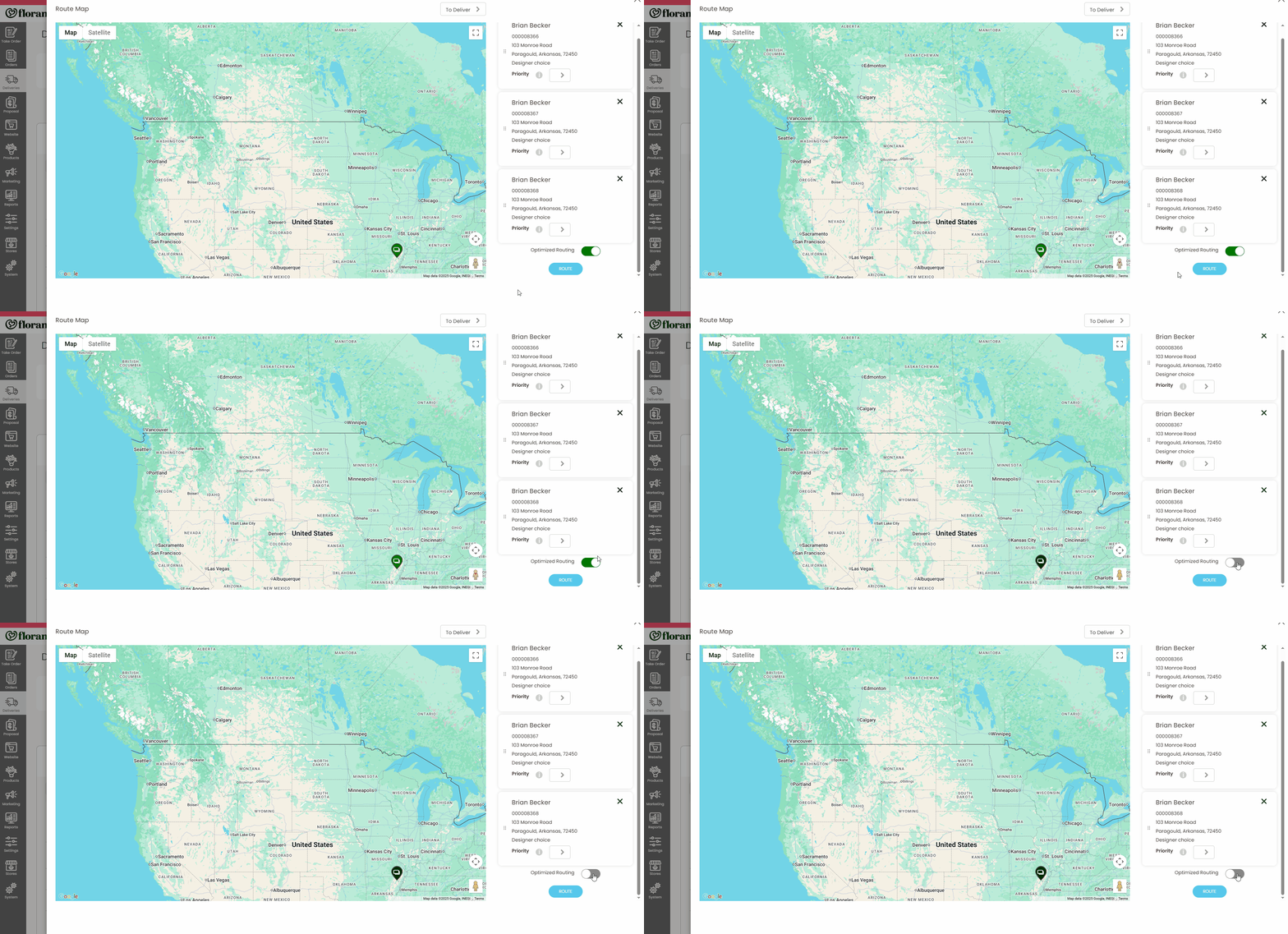
Enable Optimized Routing to let Google Maps automatically determine the order of your route. Disable Optimized Routing and combine with the Drag & Drop function to manually build your own route.
To select between these two options you will only need to enable/disable the Optimized Routing toggle on the Deliveries page prior to creating your route.
Notes:
- Editing an Optimized Route with Drag & Drop will update the route to read as Edited.
- All Drag & Drop edits in the To Deliver section will be ignored if Optimized Routing is enabled.
- Unoptimized Routes do not have a limit for the number of deliveries that can be routed.
- You are able to Optimize an Unoptimized route by clicking the Optimize Route button next to the Add Driver dropdown.
Route from the Deliveries Page:
Or route from the Route With Map Popup:

Assigning Orders to Existing Routes
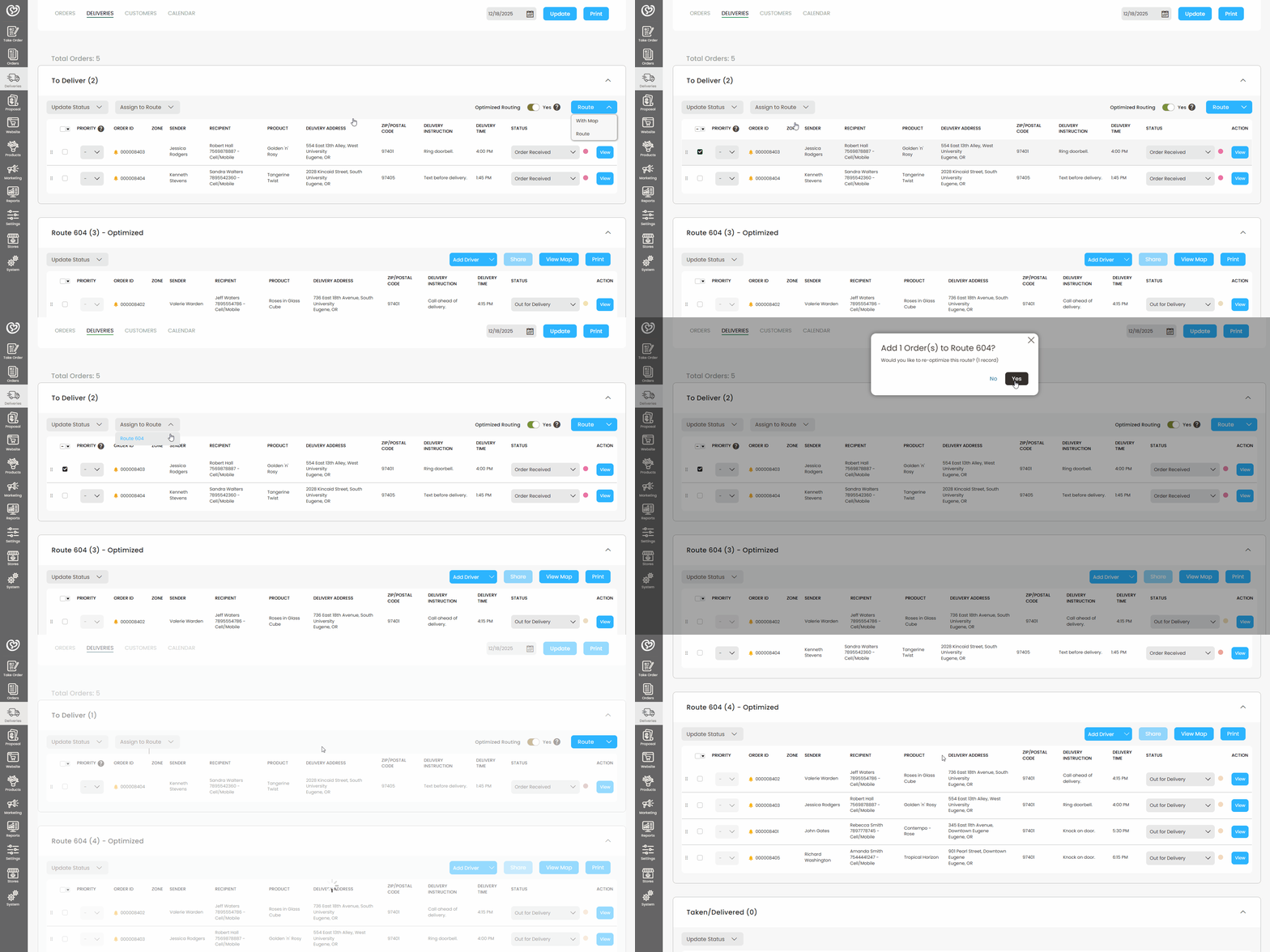
If you already had an existing delivery route that you wanted to add new orders you can do so using the Assign to Route dropdown.
To assign new orders to an existing route simply click the checkboxes next to the desired orders then select the route from the Assign to Route dropdown.
When adding the orders to the route you will have the option to either reoptimize the route with the new orders included or keep the current route layout with the new orders added to the end of the route.
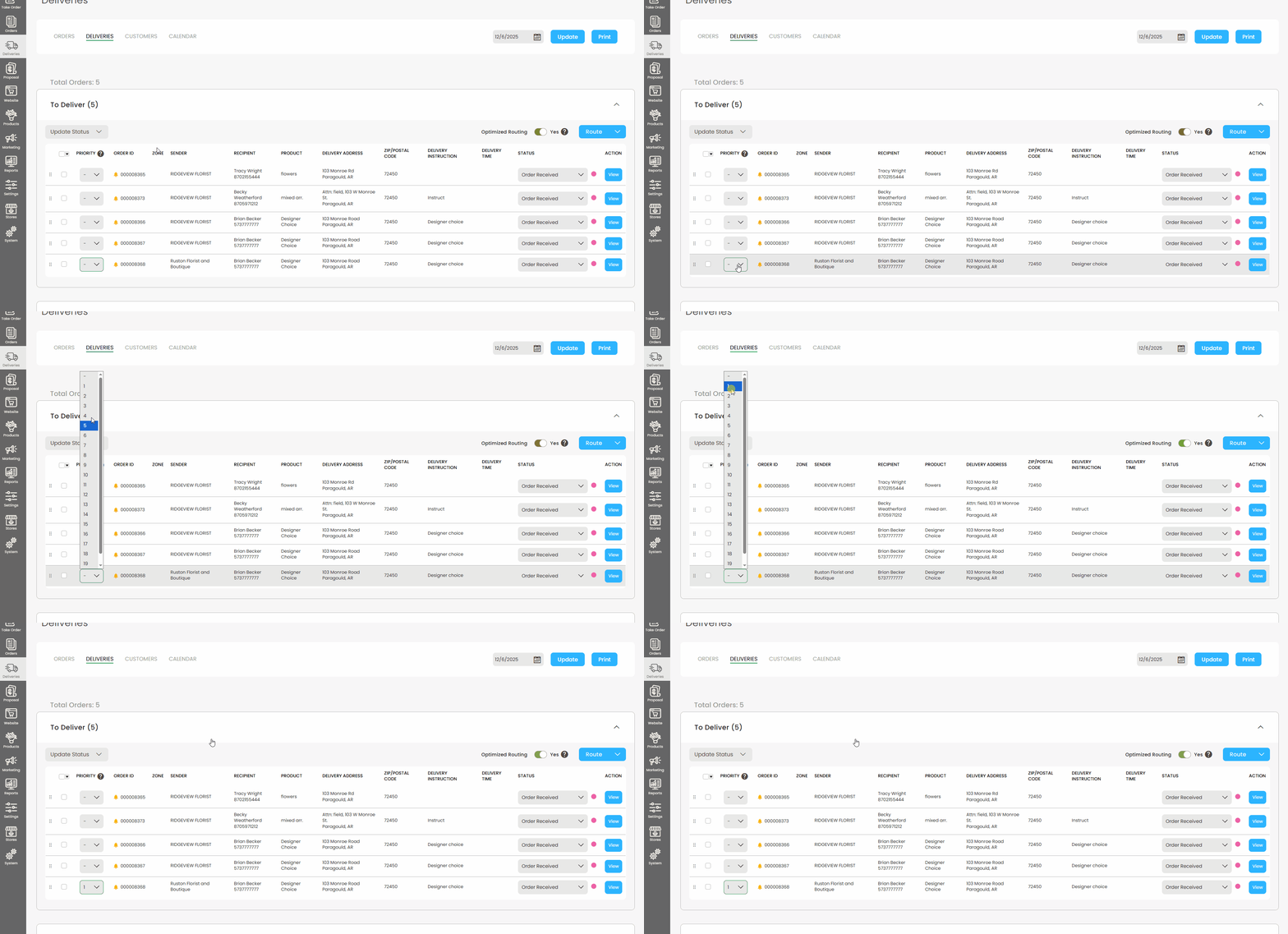
Before you create a route you may assign a Priority Number to your deliveries using the Priority drop down. Deliveries with Priority Numbers assigned to them will automatically be placed at the start of a route.
Notes:
- After creating a route, Priority Numbers will still show on the delivery and will also show on the Driver App.
- The Priority Number can be used for both Optimized and Unoptimized routes, it will function the same for both route types.
- Optimized Routes normally use the store's address as the Start and End address to build the route around. Optimized Routes created with Priority Deliveries will use the last Priority Delivery's address as the starting point.
Priority Routing from the Deliveries Page:
Priority Routing from the Route with Map Popup:


